Does My Car Have Wireless CarPlay or Android Auto? How to Check
A quick way to check whether your car supports wired or wireless CarPlay and Android Auto.
 By Connectivity & Mounts Desk
Updated October 3, 2026
By Connectivity & Mounts Desk
Updated October 3, 2026
Before buying an adapter or a new head unit, find out what your car already supports. Many cars from the mid-2010s onward have wired CarPlay or Android Auto, and a growing number have the wireless version. Here is how to check in a few minutes.
This guide is based on published specifications, manufacturer information and buyer feedback. We do not claim hands-on testing. Always follow your vehicle manual and local laws.
Step 1: Look at the screen and the USB ports
Open the infotainment menu and look for entries named Apple CarPlay, Android Auto, Phone Projection or Smartphone Integration. If there is a settings page for them, the car supports at least the wired version. Next check the USB ports: the one that supports CarPlay or Android Auto is often marked with a smartphone icon or a data symbol, and a car may have several USB ports where only one carries data.
Step 2: Check the owner’s manual and the maker’s website
The manual normally lists whether CarPlay and Android Auto are supported and whether they work wirelessly. Most manufacturers also publish a feature page by model and year. Trim level matters: a base trim may have a smaller screen with no phone projection, while a higher trim has it.
Step 3: Try it with a cable
Plug a good-quality data cable into the marked USB port with the phone unlocked. If CarPlay or Android Auto starts or prompts you to enable it, wired support is confirmed. Allow permissions when the phone asks.
Step 4: Look for wireless pairing options
For wireless, check the Bluetooth or phone settings for an option such as Wireless CarPlay or Wireless Android Auto. Some cars ask you to pair the phone over Bluetooth first and then continue over Wi-Fi. A Wi-Fi symbol on the phone-projection menu is also a good sign.
| What you find | What it means |
|---|---|
| CarPlay or Android Auto works with a cable | Wired support. An adapter may add wireless |
| Wireless option in the menu | Factory wireless support |
| No phone projection menu | No support; consider a new head unit or a portable screen |
| Only Bluetooth audio and calls | Basic Bluetooth only |
If your car has neither
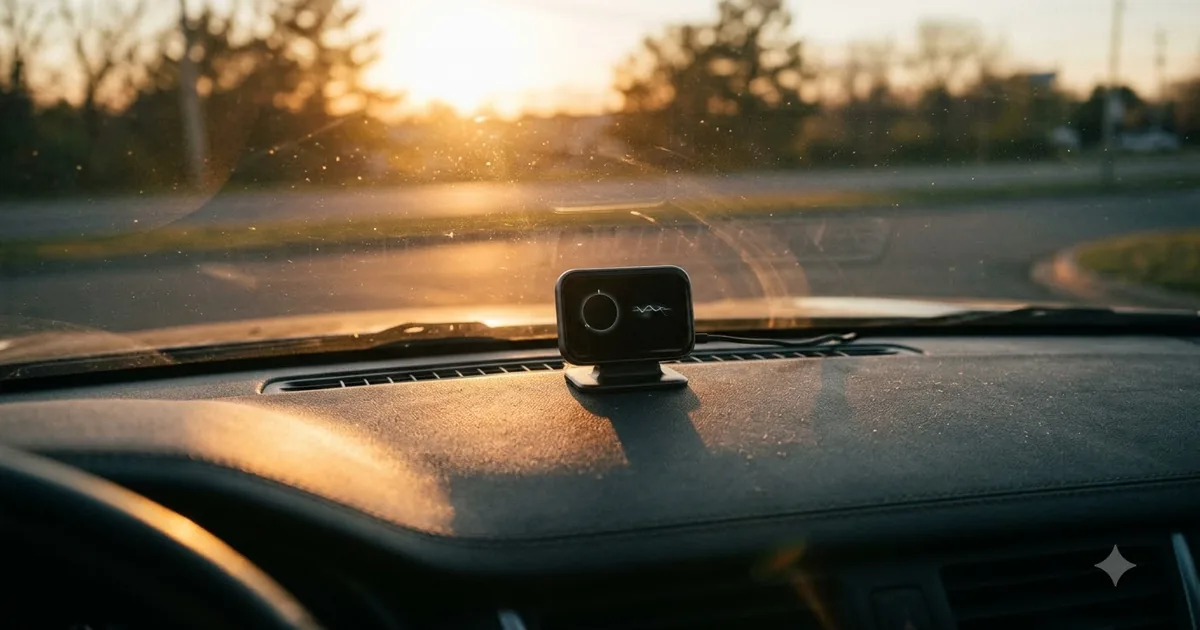
- Portable screen: a small display on the dashboard that connects to the phone and the car’s audio.
- Aftermarket head unit: replaces the factory radio; fit and wiring vary, so many people use a professional installer.
- Software update: some cars gain support after a dealer update, so ask the dealer.
Common reasons it does not work
- The cable is charge-only or damaged.
- You are using a USB port that has no data connection.
- The feature is disabled in phone settings, for example CarPlay restrictions.
- The phone or car software is out of date.
Frequently asked questions
Does Bluetooth mean I have CarPlay?
No. Bluetooth handles calls and audio; CarPlay and Android Auto show phone apps on the car screen.
Can I add CarPlay by updating the software?
Sometimes. A few manufacturers have offered updates for certain models. Ask a dealer for your VIN.
Can I use Android Auto and CarPlay in the same car?
Many cars support both. Which phone connects depends on the one you plug in or pair.
What if I use an older car?
Older cars without USB data ports usually cannot run either. A portable screen or aftermarket unit is the usual route. See wired vs wireless to compare once you have it.
Popular buying guides
About the author
The Connectivity & Mounts Desk covers wireless CarPlay and Android Auto adapters, phone mounts and car chargers. We focus on compatibility, setup and the details that decide whether a product fits your phone and your vehicle.